Set up Downtime on iOS 26
- Open Settings → Screen Time. Enable App & Website Activity if needed.
- Open Downtime and turn on Scheduled.
- Choose Every Day or Customize Days, then set the start and end.
- For a firmer restriction, set a Screen Time passcode and enable Block at Downtime.
Without Block at Downtime, the reminder can be dismissed. Apple’s iOS 26 guide explains these controls.
Seeing Screen Time Schedule instead?
In Apple’s newer layout, open Settings → Screen Time → Screen Time Schedule. Turn on Schedule, choose Add Schedule and select the days. Edit a time window to set its hours and available Time Allowance categories.
Follow the instructions that match your menus. You can check your iOS version in Settings → General → About.
Will calls and useful apps still work?
Check Screen Time → Always Allowed for the apps and contacts you need during the block. Test your actual essentials: family contact, maps, authenticator and work tools.
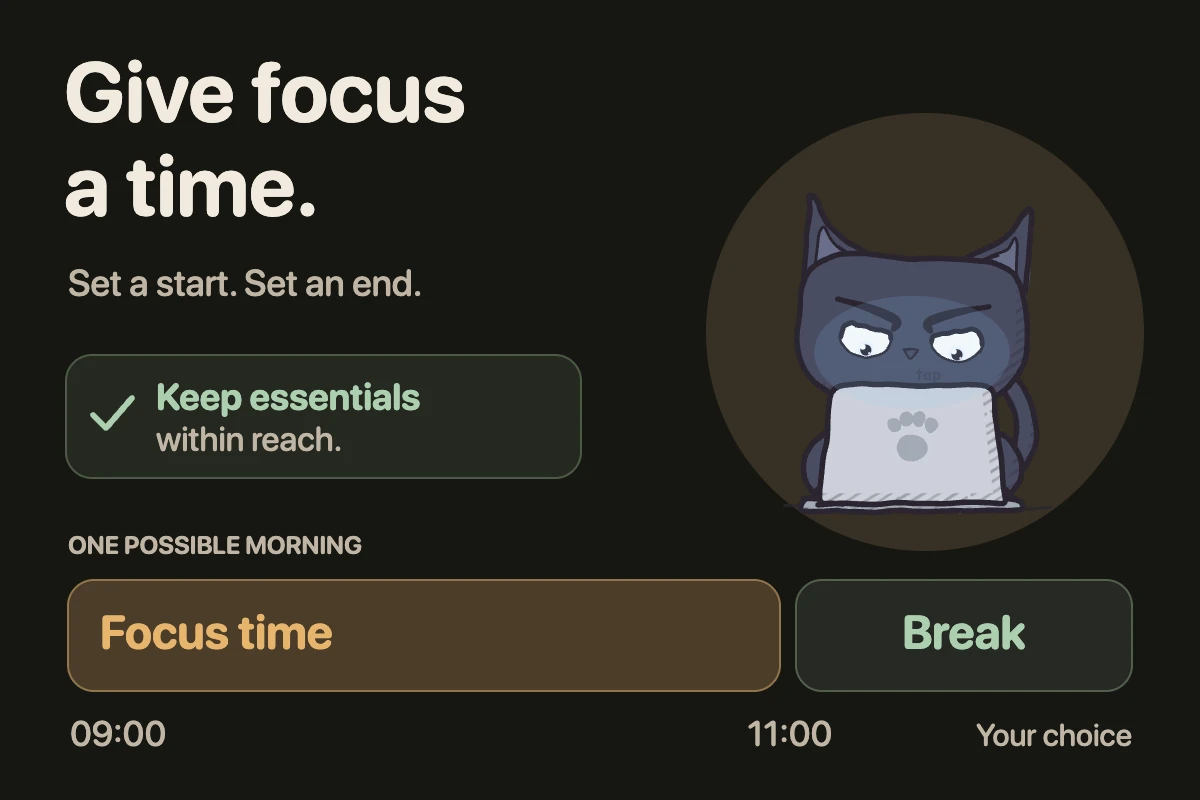
Example: protect 9–11 AM for a report, keeping work tools accessible. The illustration shows a sample window, not an ideal schedule for everyone.
Can I block only selected apps on a schedule?
Downtime on iOS 26 is a broad restriction with exceptions. A daily App Limit is a time budget, not a start-and-end window.
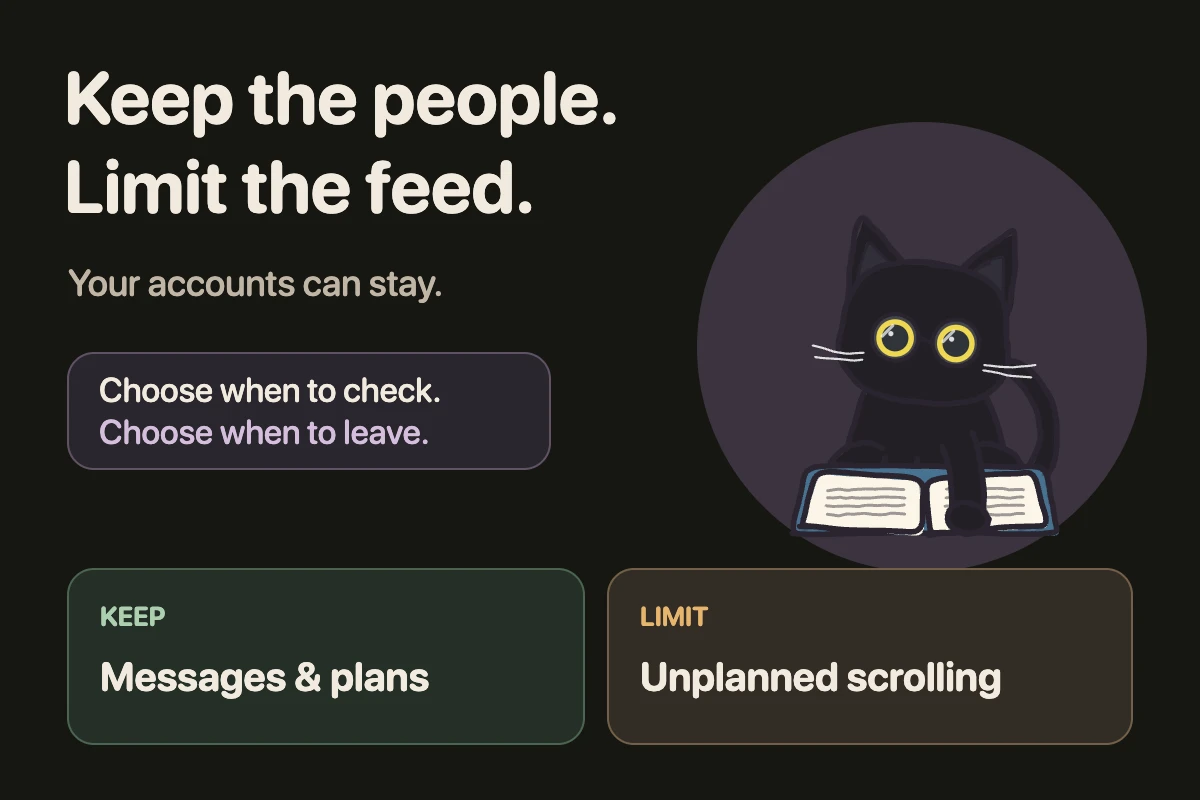
For selected distracting apps and recurring focus sessions, EvoCat offers scheduled blocks. Your cat is a companion; you choose the blocking method separately. App blocking requires a subscription.
If a block does not behave as expected, use the Screen Time troubleshooting checklist before adding more restrictions.
Close the tab. Try this.
One small action.
Set a short block for today. During it, try one distracting app and one essential tool. Adjust exceptions before making the schedule recurring.
A useful schedule protects a real activity while leaving the tools for that activity available.
Sources & context
- Apple — Set schedules with Screen Time (iOS 26) ↗
Official Downtime, passcode, Block at Downtime and Always Allowed instructions. Version-specific documentation checked October 21, 2026.
- Apple — Screen Time Schedules and Time Allowances ↗
Apple’s current guide describes the iOS 27 interface and its device-version requirements. The example focus window is our suggestion, not an Apple recommendation.
Written by EvoCat, the app’s publisher. Educational guidance, not medical advice. Our editorial approach · Suggest a correction
Put a boundary into practice
Give your next focus session a cat.
Choose distracting apps, set recurring focus time, and pick a companion in EvoCat. Blocking methods are a separate choice. App blocking requires a subscription.
Download EvoCat for iPhone ↗