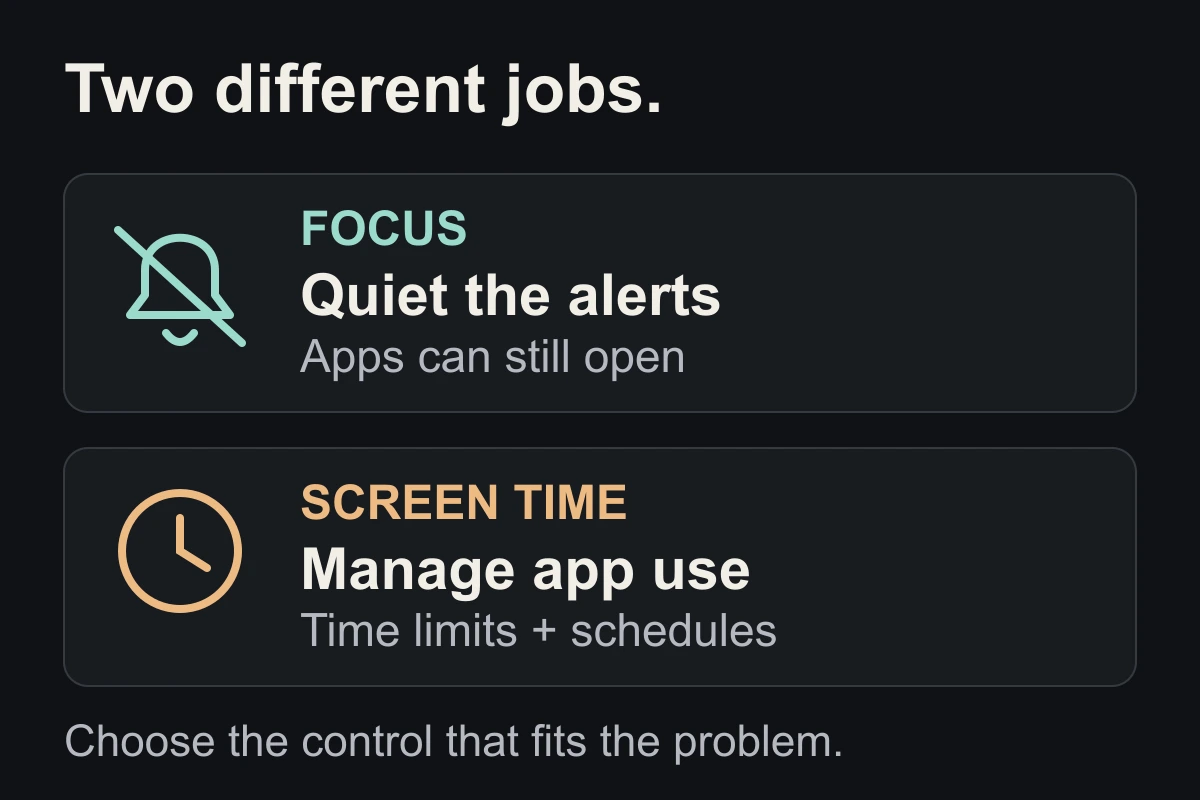
Alerts keep pulling you in? Use Focus.
Go to Settings → Focus. Choose a Focus, then use People and Apps to decide which notifications get through. Keep essential contacts reachable.
You can schedule it around work or study. Focus can also change your Home Screen or filter content in supported apps, but it does not impose an app-use time limit.
You open the feed yourself? Use Screen Time.
Open Settings → Screen Time and choose a daily allowance or a scheduled boundary for distracting apps.
The names depend on your iOS version: Apple’s iOS 27 guide uses Time Allowances and Screen Time Schedule. Earlier versions use App Limits and Downtime. Follow the guide matching your device.
Check the blocking options and allowed apps. A reminder you can dismiss may not provide the boundary you intended.
Both happen? Combine the two.
- During study: Focus quiets unnecessary alerts.
- For the feed: Screen Time sets the use boundary.
- For essentials: check exceptions in both settings.
Test before relying on the setup: can an important call reach you, and what happens when you open the distracting app? If it still opens when you expected a block, check your Screen Time settings.
Close the tab. Try this.
One small action.
Pick the problem that happens most: an alert interrupts you, or you open a feed without one. Set up the matching control for one app or one part of the day.
Quiet notifications and app-use limits solve different parts of the same problem.
Sources & context
- Apple — Set up a Focus on iPhone ↗
Official notification, scheduling and Focus-filter guidance, checked September 30, 2026.
- Apple — Set Screen Time Schedules and Time Allowances on iPhone ↗
Apple’s current guide describes iOS 27 controls. Use its version selector for earlier releases; settings names and behaviour can differ.
Written by EvoCat, the app’s publisher. Educational guidance, not medical advice. Our editorial approach · Suggest a correction
Put a boundary into practice
Let a cat interrupt the habit.
EvoCat adds challenges before screen access, with a strict blocking option too.
Explore EvoCat for iPhone ↗