Add one website to Never Allow
- Open Settings → Screen Time → Content & Privacy Restrictions and turn restrictions on.
- Tap App Store, Media, Web, & Games → Web Content.
- Select Limit Adult Websites.
- Under Never Allow, tap Add Website and enter the URL.
These steps follow Apple’s iOS 26 guide. Menu names differ across versions; this lesson specifically covers iOS 26.
Why choose “Limit Adult Websites” for a social site?
On iOS 26, that option exposes the Never Allow list for adding specific URLs, including ordinary social or news sites. It also turns on broader adult-content filtering. It is not a custom-URL-only switch.
Check that useful sites still open. If the broader filter gets in your way, reconsider this approach instead of piling exceptions onto a setup that does not suit you.
Does blocking the website also block its app?
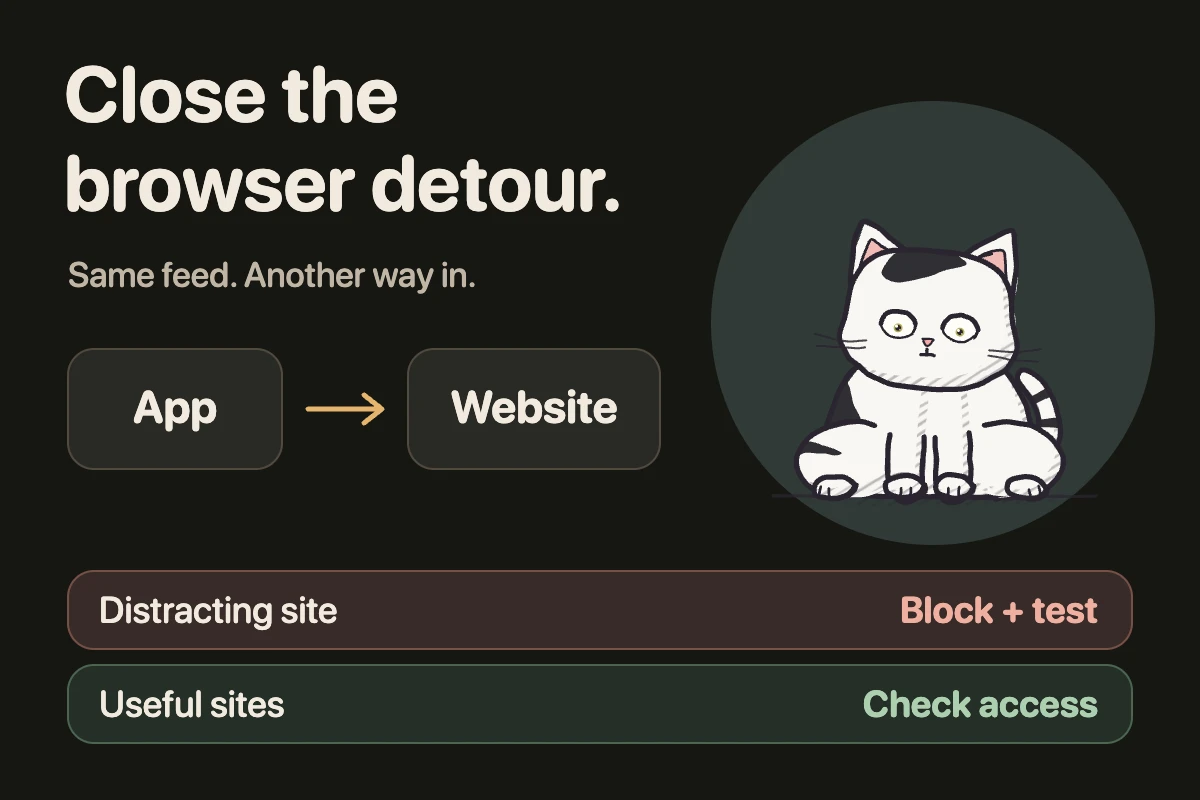
Do not assume so. A website restriction and access through an installed app are separate things to test. Open the site in Safari, then check the app and any other browser you actually use.
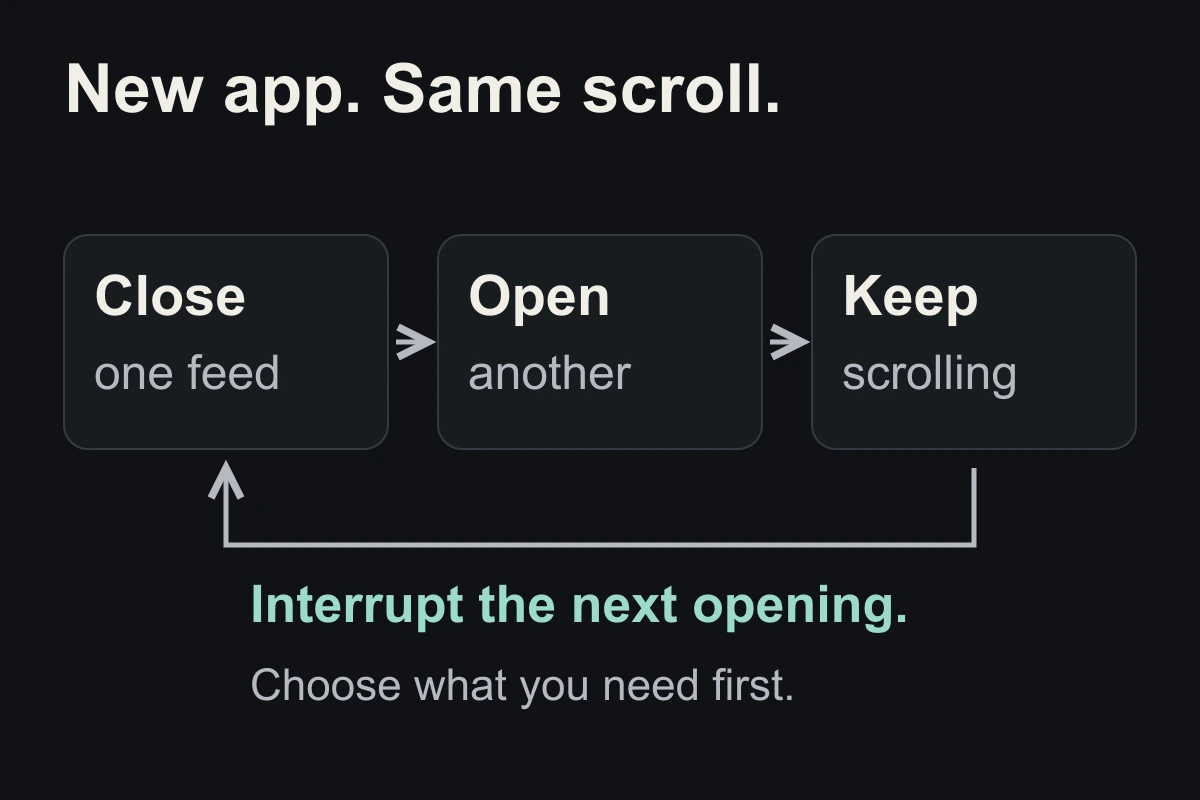
If a bookmark opens a different address, inspect that URL too. For the installed app, see scheduled app blocking. If you simply switch to another feed, use the app-switching lesson.
Can I block a website only during work hours?
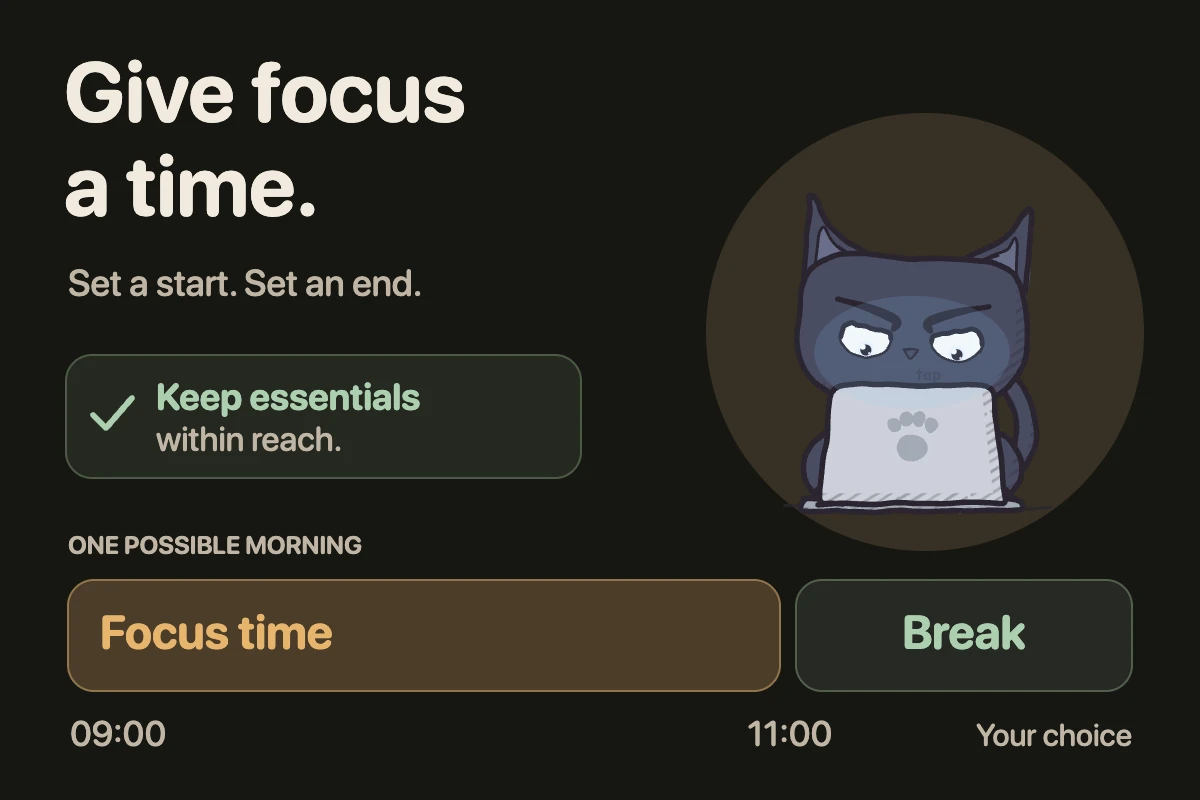
Never Allow is an ongoing restriction, not a work-hours schedule. For a timed boundary, EvoCat supports recurring blocks for selected apps and websites. Check the actual sites you use during a test session; no blocker should be described as impossible to bypass.
Choose the narrowest boundary that addresses your detour. You may need one website restricted during a task, rather than your entire browser unavailable all day.
Close the tab. Try this.
One small action.
Add one distracting URL, then test it in Safari. Confirm that a useful site still loads and check whether you can reach the same feed through its app.
The useful test is whether the route you actually take to the feed is interrupted.
Sources & context
- Apple — Block apps, app downloads, websites, and purchases (iOS 26) ↗
Official source for the Web Content menu, Limit Adult Websites and adding URLs under Never Allow. Checked October 21, 2026. Our browser-and-app test is an editorial troubleshooting suggestion.
Written by EvoCat, the app’s publisher. Educational guidance, not medical advice. Our editorial approach · Suggest a correction
Put a boundary into practice
Keep the feed out of focus time.
EvoCat supports recurring blocks for selected apps and websites, with a cat companion of your choice. Test your chosen sites and keep essential tools accessible. App blocking requires a subscription.
Download EvoCat for iPhone ↗