Turn off badges for one app
- Open Settings → Notifications.
- Select the app under Notification Style.
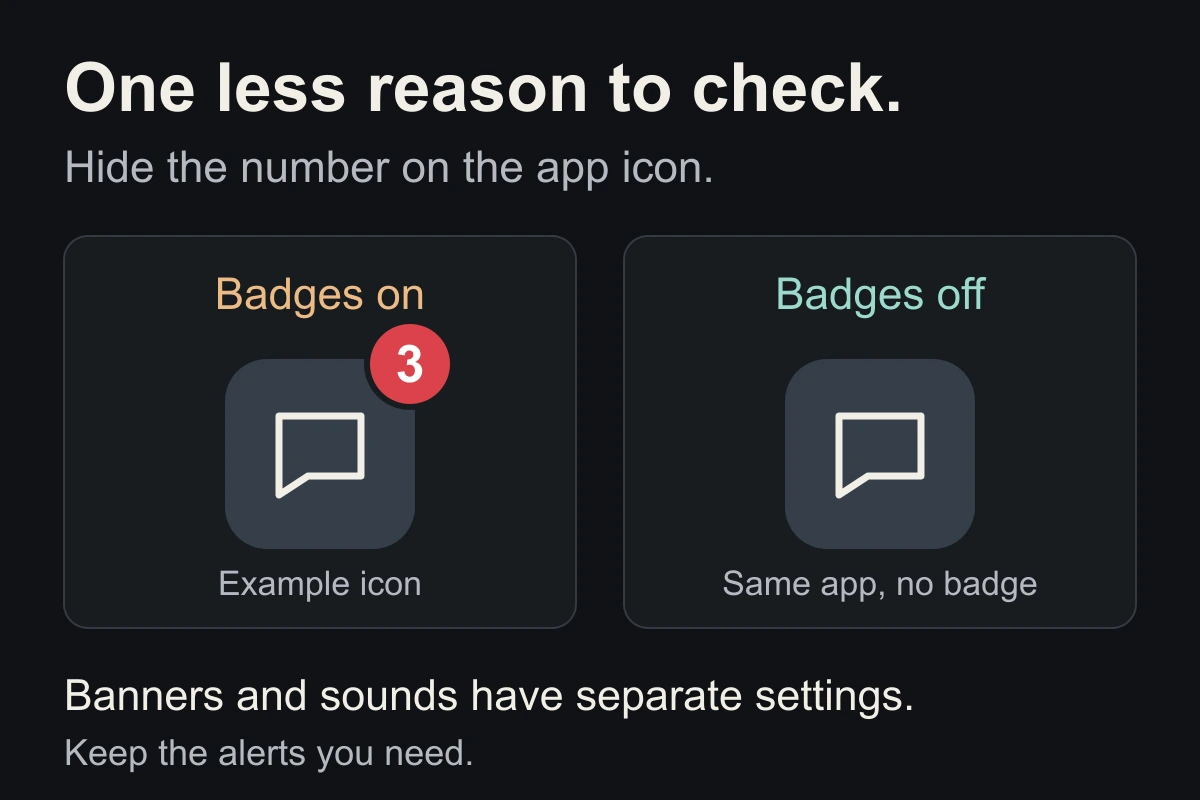
- Switch Badges off, if the option is available.
Repeat for other apps whose numbers keep drawing you back. Leave Allow Notifications on if you still want alerts, and check that the alert locations and sounds you need remain enabled.
Will I still get notifications?
Badges control the information displayed on the app icon. Banners, sounds and Notification Center have separate controls. Turning off a badge does not itself turn those alerts off, though Focus and your other settings can affect delivery.
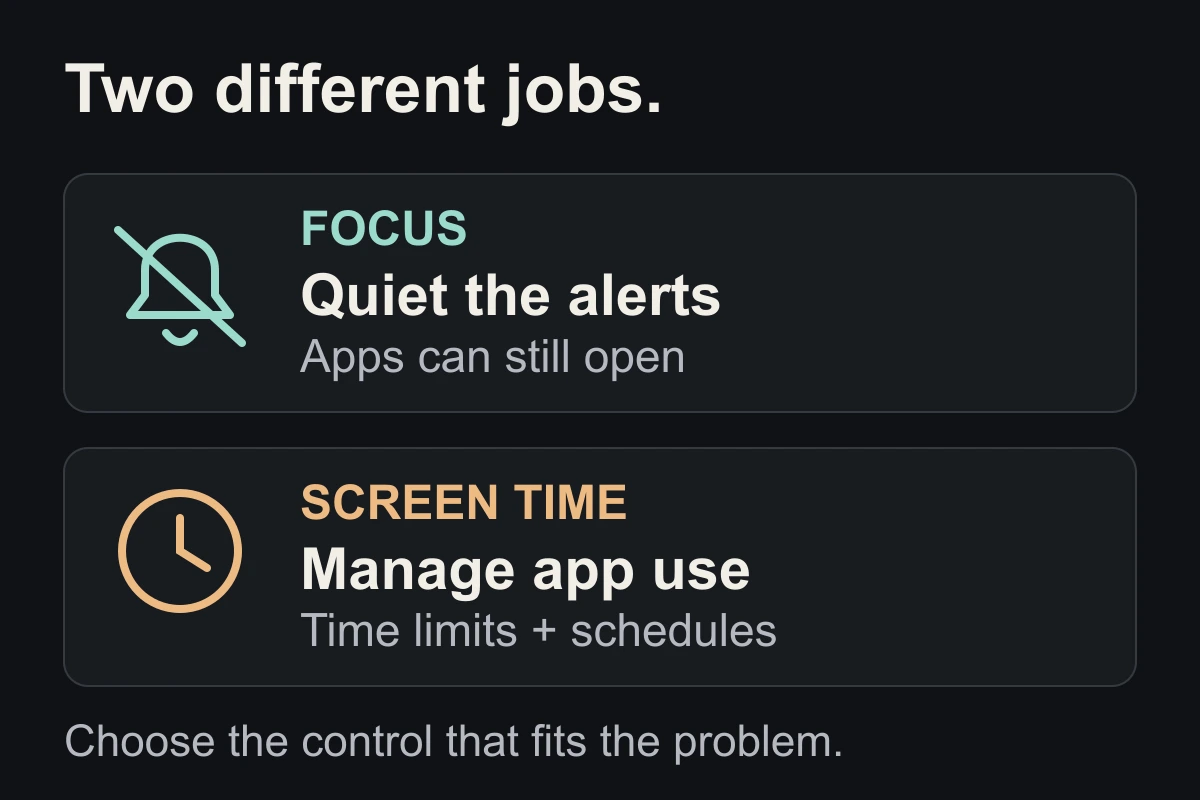
This also does not delete messages, mark your inbox as read, or block the app. It changes what the icon shows. If banners are the distraction, use our notification settings guide.
Try it where the number becomes a task
Choose one non-essential app you open mainly to clear its number. Keep badges that help you handle something important.
For today, choose a time to check that app instead. When you reach for it earlier, ask what prompted the opening: a banner, boredom, or the habit of checking?
At the end of the day, notice whether you checked less automatically or missed something useful. Restore Badges through the same menu if needed. This is an experiment, not a guaranteed screen-time reduction.
If the icon itself still pulls you in, try moving it off your Home Screen.
Close the tab. Try this.
One small action.
Hide one distracting app’s badge and choose your next check-in time. Keep the change only if it makes your day easier.
An unread count does not have to become your next task.
Sources & context
- Apple — Change notification settings on iPhone ↗
Official per-app controls for badges, alert locations and sounds. Checked October 6, 2026. Options can vary by app.
- Apple Support — Use notifications on your iPhone or iPad ↗
Explains app-icon badges and notification delivery settings. The one-day checking experiment is an original editorial suggestion, not an Apple effectiveness claim.
Written by EvoCat, the app’s publisher. Educational guidance, not medical advice. Our editorial approach · Suggest a correction
Put a boundary into practice
Let a cat interrupt the habit.
EvoCat adds challenges before screen access, with a strict blocking option too.
Explore EvoCat for iPhone ↗