Do you need the whole website blocked?
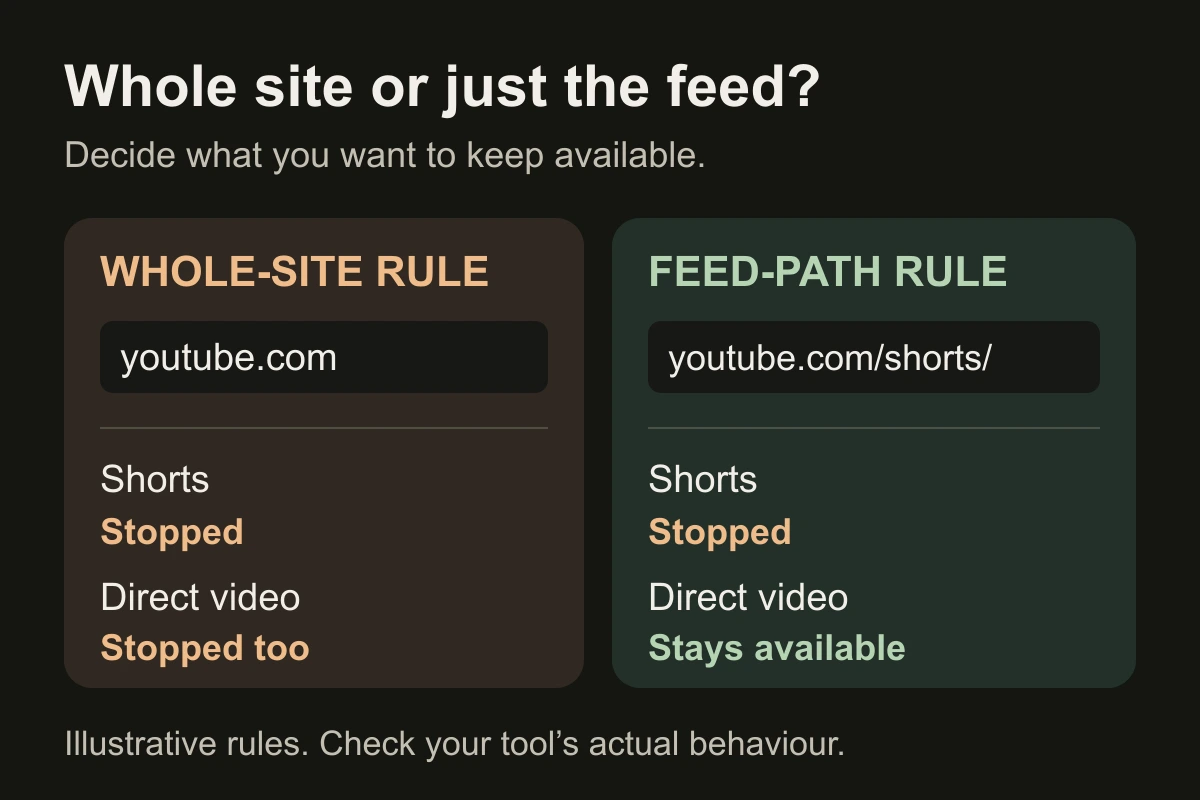
Write down what to stop and keep: “No Shorts; yes to the tutorial.” A domain such as youtube.com and a path such as /shorts/ are different. A domain-only rule cannot distinguish those pages.
For a feed-only boundary, look for URL-path support. Hiding recommendations, closing a tab and preventing a site from loading are different behaviours.
How do I block a website in Safari for free?
On macOS Tahoe 26: turn on Screen Time, then follow Apple’s Safari restriction instructions:
- Open System Settings → Screen Time → Content & Privacy and enable it.
- Choose App Store, Media, Web, & Games.
- Under Safari, choose Limit Adult Websites → Customize.
- Add the website URL to Restricted, then save.
This also enables adult-content filtering. Apple documents this control under Safari; do not assume it covers Chrome. Other macOS versions have different menus—select your version in Apple’s guide.
What about Chrome or switching browsers?
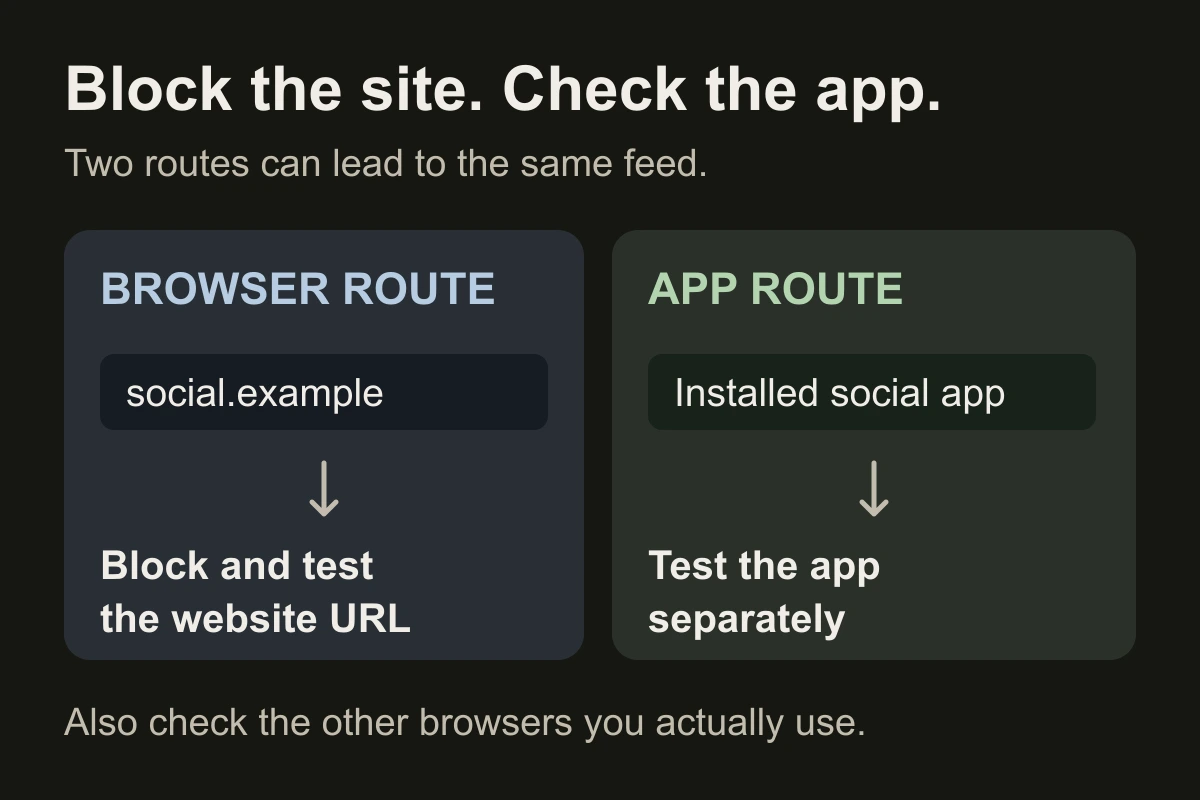
Choose a blocker that lists every browser you use. A Chrome extension does not install itself in Safari. For a desktop tool, check permissions and whether it must stay running.
Start with one rule. Test browser profiles and private windows you use. Configure the iPhone separately; a Mac rule does not prove cross-device protection.
How do I check that my rule works?
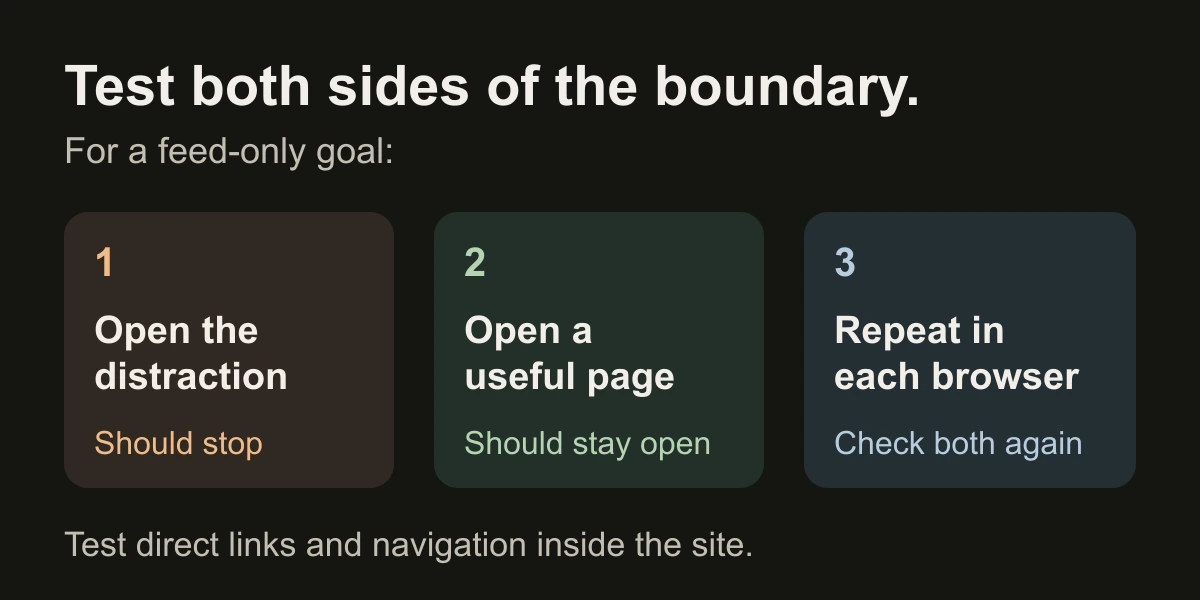
Open the distracting address directly, then through the site’s navigation. Open the useful page you meant to keep. Repeat in each browser.
If both stop, the rule is too broad for a feed-only goal. If neither stops, check the address, permissions and active session. Plan necessary exceptions before you need them.
Close the tab. Try this.
One small action.
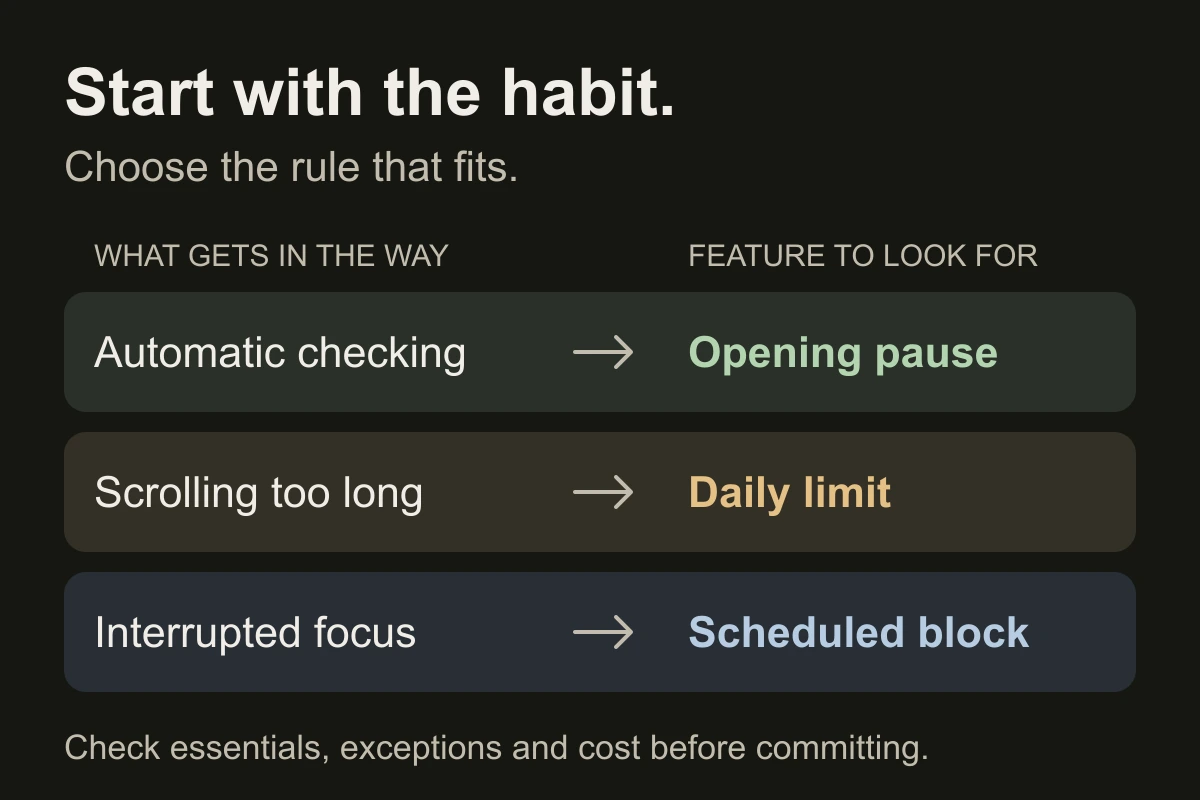
Choose one distracting address and one useful page. Test both in Safari and your other browser. Record what happened before changing the rule.
A useful block stops the route you drift into and preserves the work you came to do.
Sources & context
- Apple — App Store, Media, Web, & Games settings, macOS Tahoe 26 ↗
Checked November 15, 2026. Version-specific official Safari controls: Limit Adult Websites, Customize and Restricted URLs. This is not evidence of identical Chrome coverage or path-only filtering.
- Apple — Set up content and privacy restrictions, macOS Tahoe 26 ↗
Official setup prerequisite and navigation. Use the version selector for other macOS releases. Newer family-account settings should not be assumed to describe an adult’s self-managed setup.
- MDN — URI reference ↗
Explains host and path components. The two-page checking exercise is our practical suggestion, not a validated study or proof of a blocker’s effectiveness.
Written by EvoCat, the app’s publisher. Educational guidance, not medical advice. Our editorial approach · Suggest a correction
Put a boundary into practice
Keep the tutorial. Close the scroll.
EvoCat for Mac closes YouTube Shorts and Reels tabs in supported browsers. With Guard on and default rules, ordinary YouTube videos stay available. It closes matching tabs rather than hiding every thumbnail. No browser extension is required. Try it for 7 days, then €9.99 / $9.99 once; the Mac license is separate from the iPhone subscription.
Explore EvoCat for Mac →