1. Switch off the next video
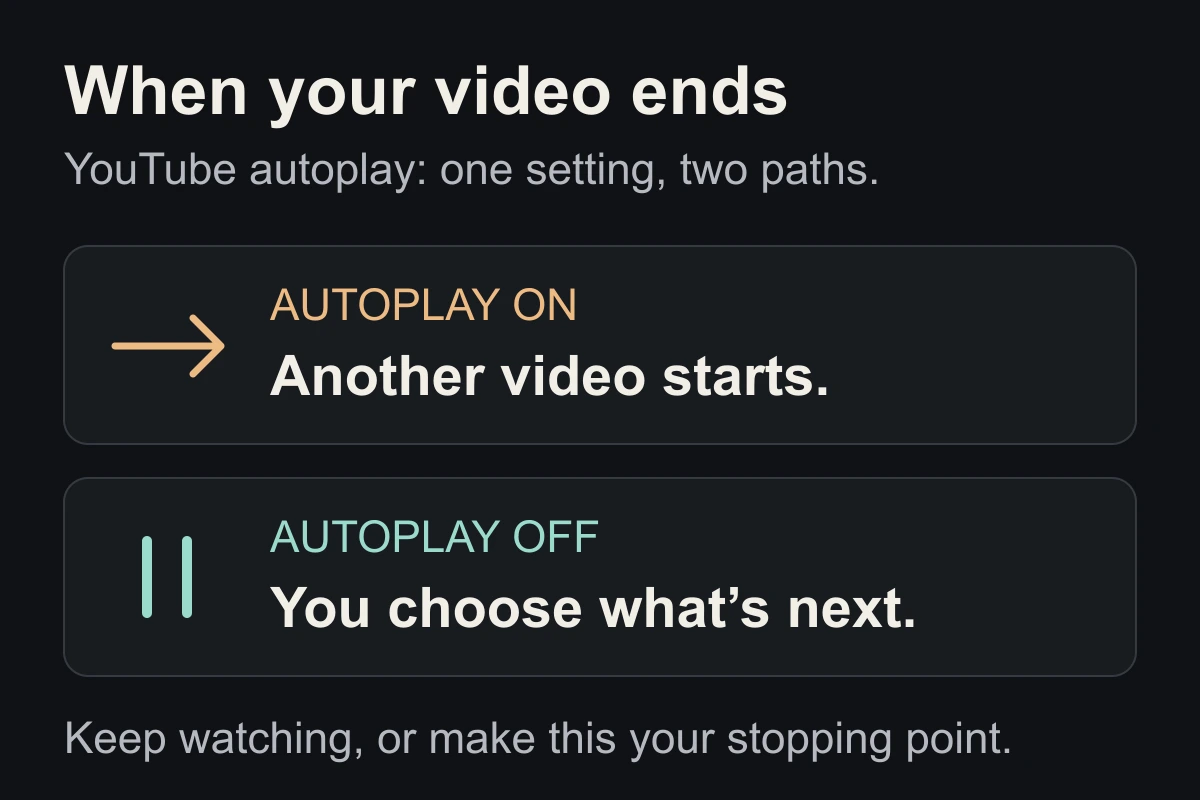
On iPhone or Android: open YouTube, tap your profile picture, then Settings → Autoplay. Turn the switch off.
You can also change it at the top of the video player. On a computer, look for the autoplay switch at the bottom of the player.
Check each device you use. YouTube allows different autoplay settings on your phone and computer.
2. Separate autoplay from previews
Videos moving silently as you browse are a different feature. On iPhone, go to your profile picture → Settings → General → Playback in feeds → Off to stop those previews.
Neither setting blocks YouTube. You can still tap recommendations or open Shorts. For that habit, try our short-video scrolling guide.
3. Give the ending a job
Before pressing play, finish this sentence: “After this video, I will ___.” Choose something specific: close the laptop, make tea, or return to your notes.
When the video ends, pause before choosing another. You can keep watching deliberately; the useful change is having a moment to decide.
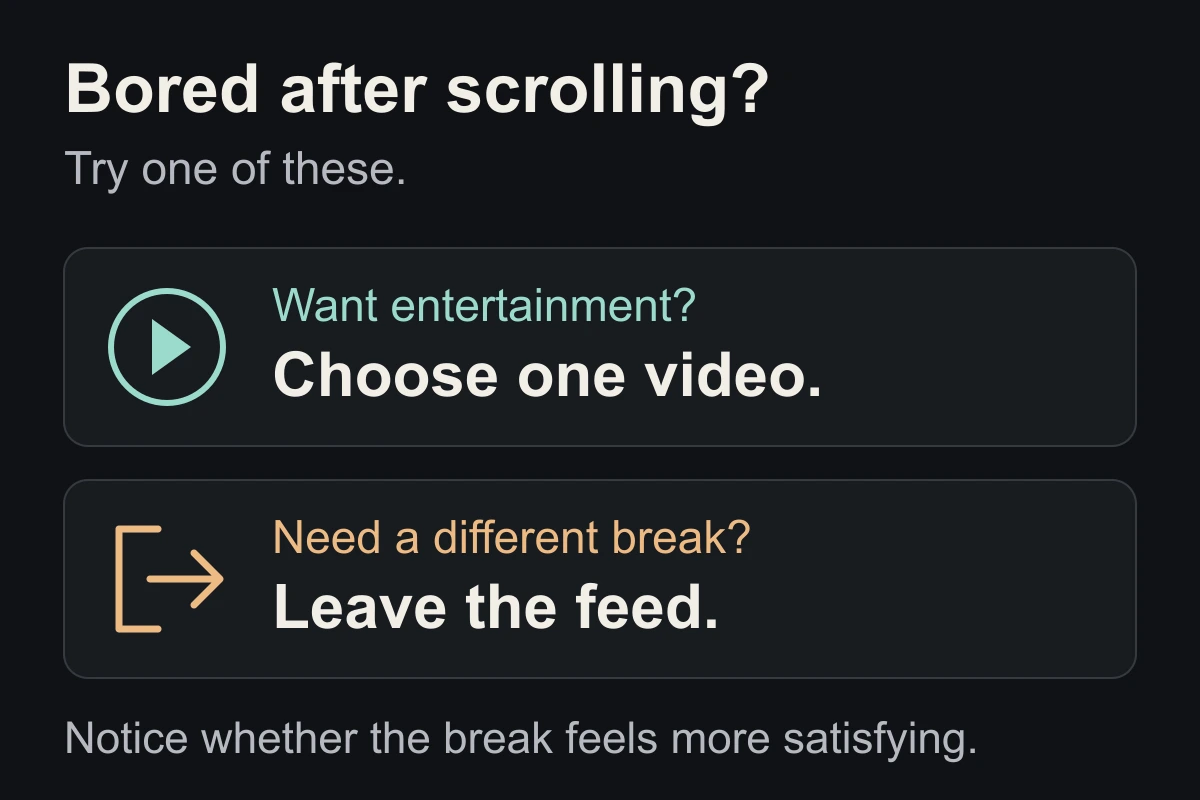
If you are still bored, try a different kind of break. This is a practical experiment, not a promise that one setting will reduce your screen time.
Close the tab. Try this.
One small action.
Turn autoplay off on your most-used device. Choose one video and one thing to do afterwards. When it ends, notice whether you follow your plan or choose another video.
A video ending can be your stopping point, too.
Sources & context
- YouTube Help — Autoplay videos ↗
Official mobile and computer instructions, including separate preferences across devices. Checked October 4, 2026.
- YouTube Help — Use the inline player (iPhone and iPad) ↗
Official instructions for Playback in feeds. Feed previews and autoplay are separate controls. The stopping-point exercise is an original editorial suggestion.
Written by EvoCat, the app’s publisher. Educational guidance, not medical advice. Our editorial approach · Suggest a correction
Put a boundary into practice
Let a cat interrupt the habit.
EvoCat adds challenges before screen access, with a strict blocking option too.
Explore EvoCat for iPhone ↗